Free RSS Feed Viewer
Enter a URL in the input below to search for syndicated content (RSS, Atom, JSONFeed feeds) on any site. The feed content, if found, will be displayed below.
Free to use. Find and preview any site's feed. Browse the feed and get direct links to the original posts.
Want to keep track of feeds and email newsletters in one place? Search across content and discover topics and interests? Try out Foragd. Start a 14-day trial, no committment and no payment details required.
Feed Overview
Posts from the Foragd Team
Comparisons, opinions and other content from the Foragd team
Updated
RSS Vs Atom, the TL;DR
RSS and Atom are both file formats that define a website’s feed. Feed viewers fetch and parse these formats to generate a list of articles or posts you can view in a feed viewer like Foragd.
The TL;DR: as a user wanting to read content from feeds in your favorite reader, use either. As a developer, use whichever is readily available in your framework.
Read on for more details about both formats, their differences, and similarities and some nuances about their use.

The Similarities
RSS and Atom feeds are both XML file formats that contain a structure for defining links, or in some cases, full content of posts for a website. Generally, they are used for blog posts or articles, but work well for any kind of syndicated content that updates on a regular basis. So breaking news, new items or listings, status updates or even new comments could be represented as one of these feeds.
Simplified, they have the following structure:
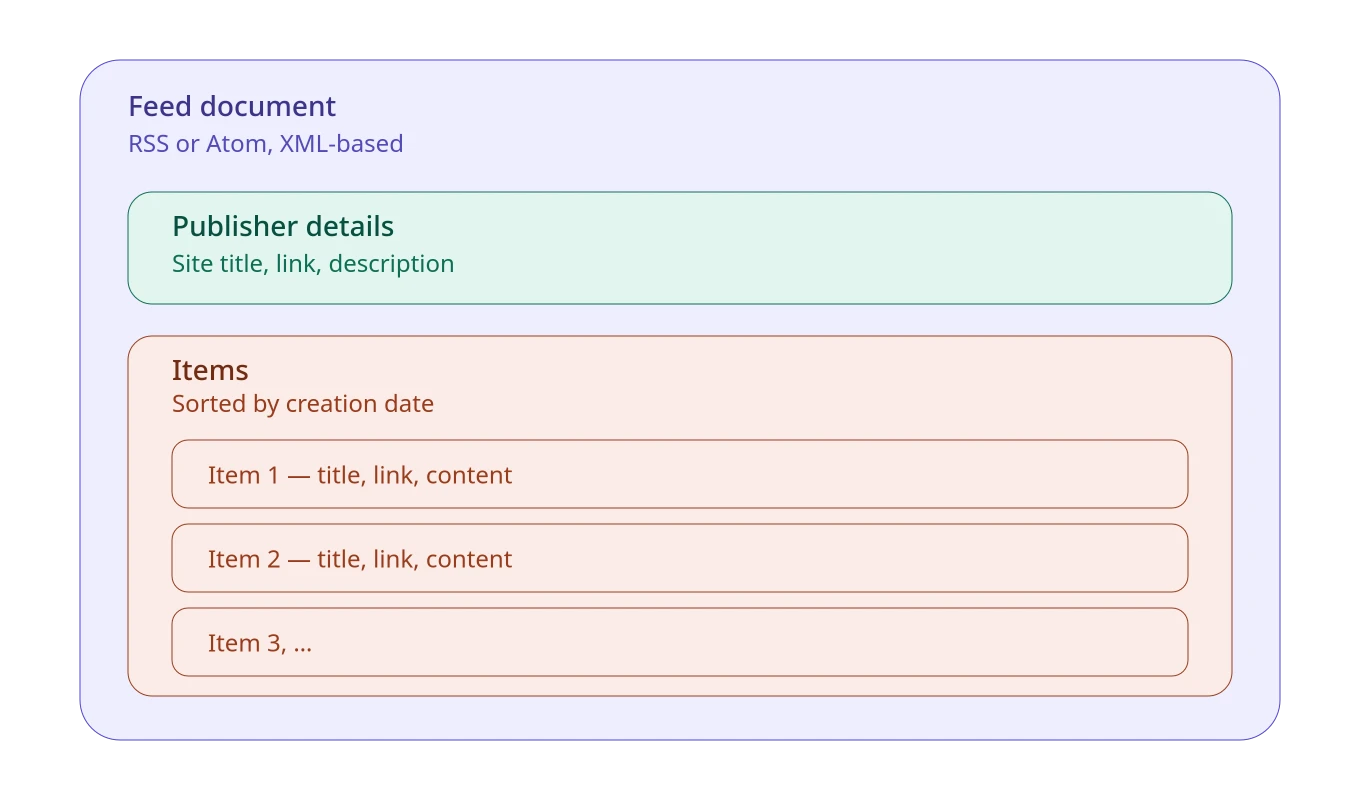
Items are usually sorted by their creation date. The number of items is not capped or limited, but generally most feed publishers will expose a rolling number of items, with older items being removed after some period.
Both formats include publisher details that make the files self-contained, allowing them to be shared or published elsewhere than the source website, and retain the necessary details to link back to that source.
The Differences
First off, Mark Nottingham (who authored the Atom spec) has run some numbers that show that RSS is implemented more often than Atom. As Mark notes, this likely is not meaningful as a decision key on which to implement.
Atom is much more expressive in terms of the structure that defines items in the feed. RSS has less rigidity, but ultimately both cover all the canonical structure you’d expect for items, like titles, descriptions, content, and media elements. Additionally, both support extensions that provide a way to add functionality to their base layouts and often the same extensions work in both formats due to them sharing the XML base format. Wikipedia has a good quick comparison of the difference in structure between the two.
Which Should You Use?
As an end user: If you have a choice, pick either as nearly all good feed readers, like Foragd, support both formats.
As a developer: If you are looking to add a feed to your project, use whichever format your framework or service readily provides. For end-users, it won’t matter as the app or service they use to consume your feed will support both formats and the feature-set of each format is nearly identical.
Shameless plug: If you are a Go developer, you might be interested in go-syndication, which provides reading and writing for RSS, Atom, JSONFeed and a number of extensions for these formats.
If you want the full details, both specifications are surprisingly easy to read (see references below).
Getting started with RSS and Atom feeds? Foragd is free to try for 14 days — no commitment needed. Sign up.
References
- https://en.wikipedia.org/wiki/Web_feed
- https://en.wikipedia.org/wiki/RSS
- https://en.wikipedia.org/wiki/Atom_(standard)
- https://www.rssboard.org/rss-specification
- https://www.rfc-editor.org/info/rfc4287/
License: CC BY-SA 4.0.
Updated
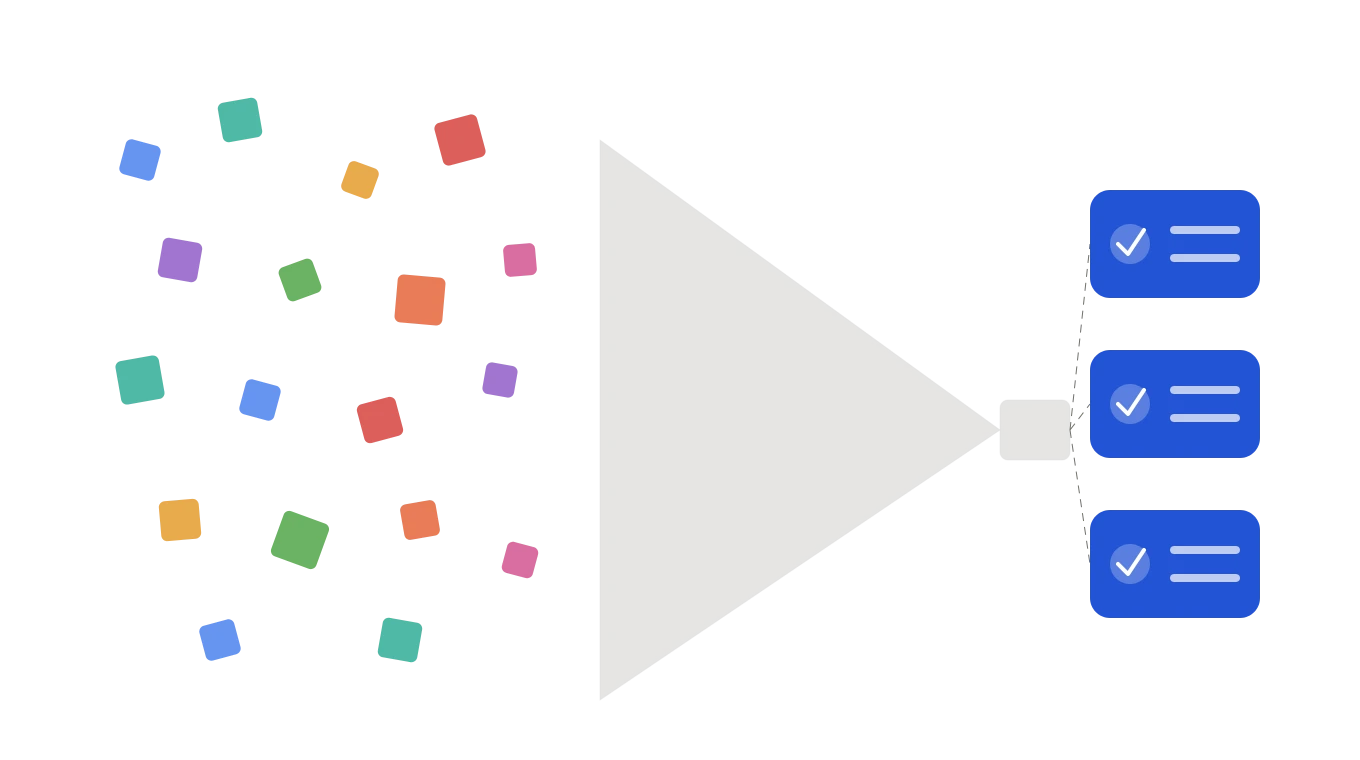
As we’ve discussed before, it can be easy to get overwhelmed by the constant stream of articles, posts and other content coming through your feeds. It’s therefore critical that you are able to filter that stream to reduce the noise and surface the content you are actually interested in.
Foragd makes this easy with powerful but easy to use filtering across all your subscriptions. This post will walk you through the process of applying filters and show some practical examples.

The Source
For this demonstration, I’m using the OzBargain feed. Ozbargain is a website where users post the deals from various shops/sellers they have found on the web. You can subscribe to it in Foragd, getting all deals as they come in:
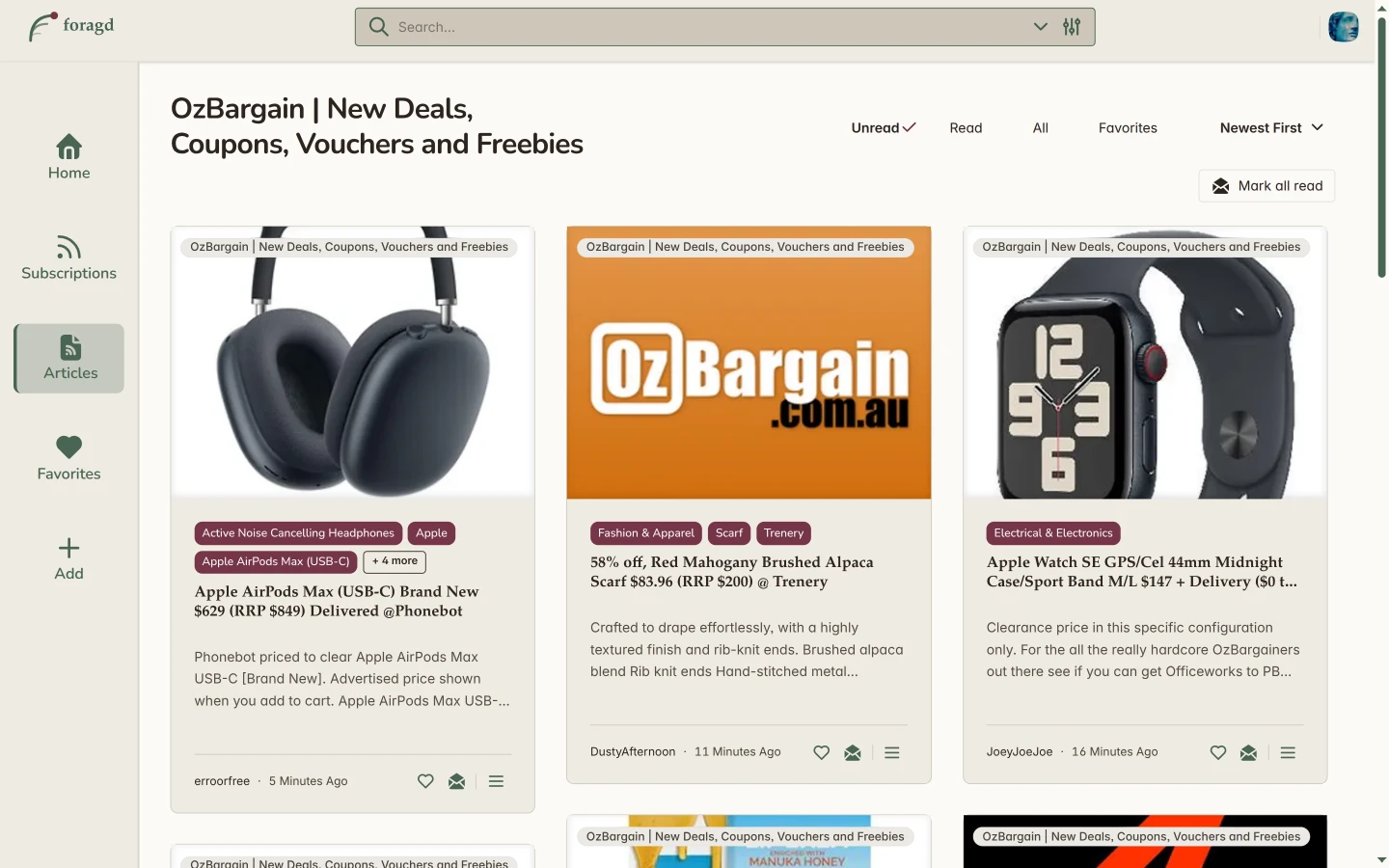
If we turn on showing subscription stats in Foragd settings, and going back to our list of subscriptions, we can see that its feed is very noisy:
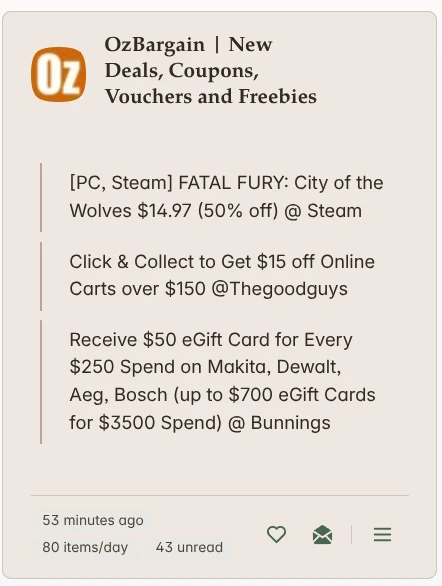
This is a busy feed! Ozbargainers (as they are known) are contributing on average, 80+ deals a day. That’s a lot of bargains! But not all those bargains are of interest to me, so its also a lot of noise.
One thing we can note, that will be useful as we build our filters, is that there is a lot of structure in these posts we can use to our advantage:
- All posts are categorized. We can define filters that apply directly to those categories.
- Post titles often have extra, unofficial tagging formats. See the
[PC, Steam]tagging on the game deal above, or how most posts mention which retailer or shop the deal applies to (i.e.,Amazon,Bunningsetc.).
Before We Start: A Segue on Filtering
In Foragd, every subscription can have its own set of article filters. You can filter on the article title, content, authors or categories, thus giving you a lot of power to drill-down to exactly what you are interested in:
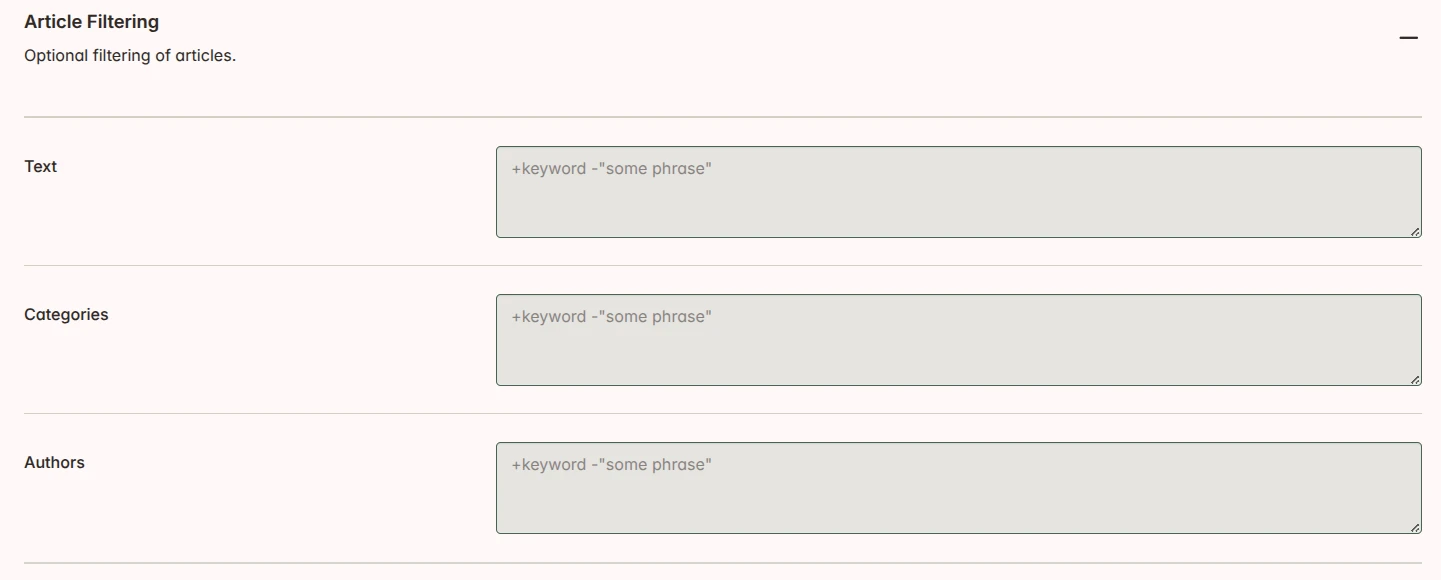
Filters are build from straightforward text strings. Just a phrase like "search term" would filter
articles to those matching that phrase. You can use some operators for more extensive filtering:
+signifies AND operation (i.e., food AND beverages).|signifies OR operation (i.e., food OR beverages).-negates the word (i.e., NOT samsung)""represents an exact phrase match (i.e.,"galaxy watch").\*at the end of a word indicates a prefix match (i.e.,bird\*will match bird, birding and birds).
By default your filters are OR’ed together. So the filter cats dogs filters articles to those matching cats OR
dogs.
Some real examples. Let’s say you’ve got a feed on tech news and as of the published date of this post, tech is obsessed with AI. Here are some filters that could be used on that feed:
| Goal | Query |
|---|---|
| AI news, but not about ChatGPT | AI -chatgpt |
| Find articles about “machine learning” (phrase) | "machine learning" |
| Find articles that are only about python and that are also tutorials | +python +tutorial |
All operators can be combined, for e.g., +python +tutorial "machine learning" -chatgpt.
Filtering can be an inexact science. You may need a little bit of trial and error to get the filtering just right so that you eliminate nearly all noise, but aren’t accidentally filtering out articles you might be interested in.
Back to Building the Filters
Alright, so now we know how filtering works in Foragd, and we can see we have a lot of power to control our noisy Ozbargain feed!
Let’s say I’m interested in some new Apple gear. Ignoring all the mumbo-jumbo above and just filtering on Apple works:
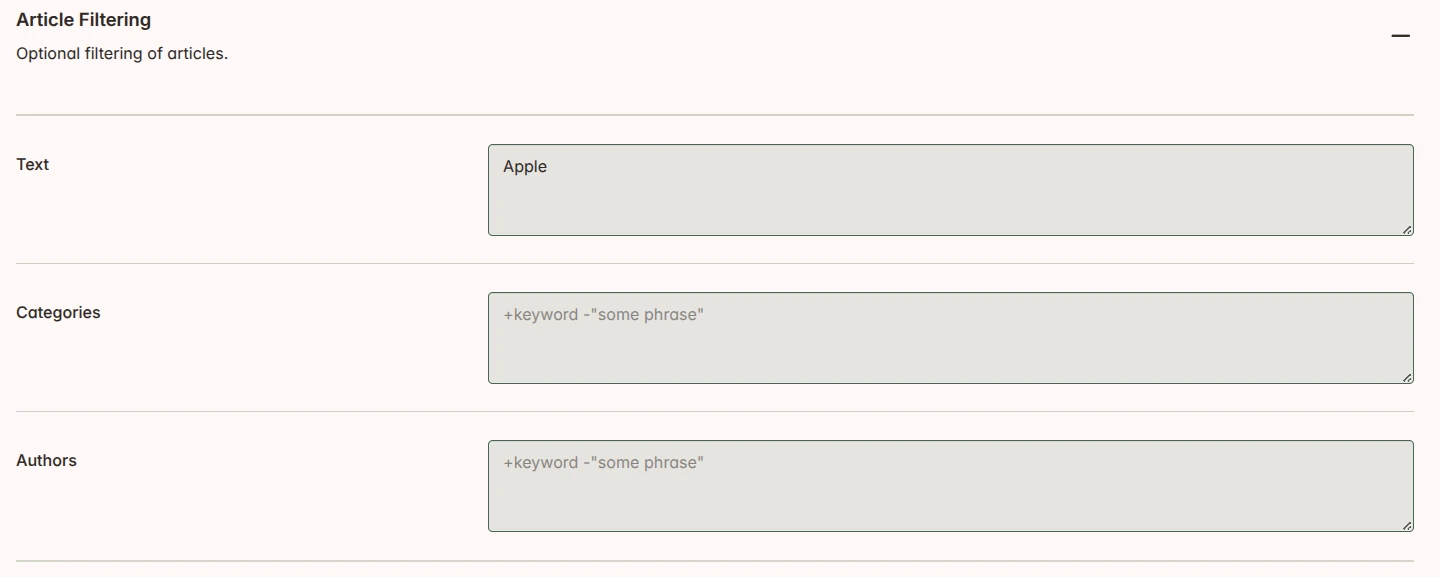
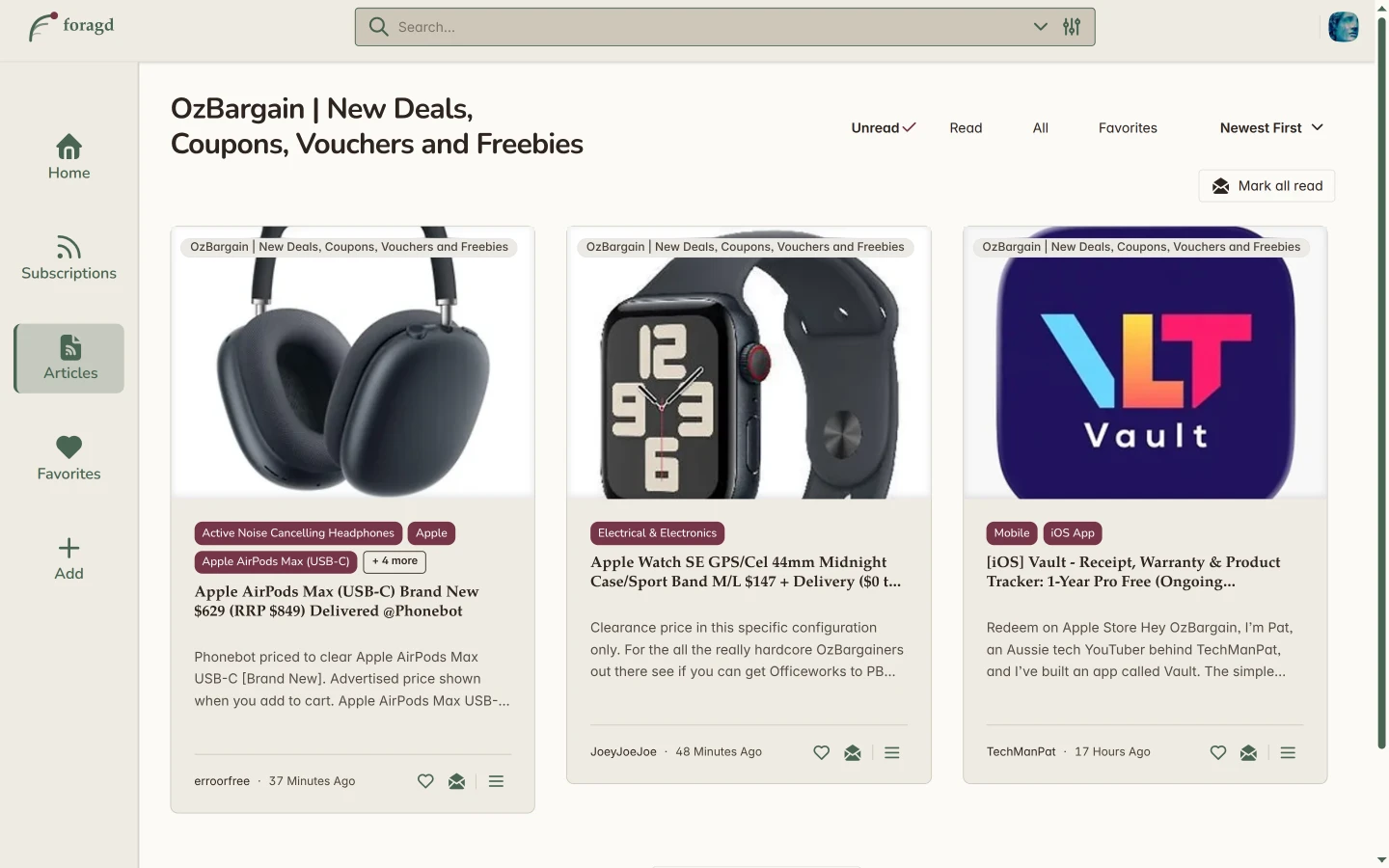
Boom! We are only seeing results for Apple products. Looking at the results, we could narrow the results down further.
If we were only interested in iOS apps or deals, we could add a Category filter: "iOS App", making use of that
category in the results shown. Alternatively, we could have changed the Text filter to Apple + [iOS]. Same results
in this case. But keep in mind that the titles are likelier to vary than categories (people might use all kinds of
variations in the title, or none at all!), so using categories would be a safer bet.
What if we wanted to broaden our results and compare the market a bit? We could change our Text filter to Apple | Google to filter to articles that match any of the top mobile manufacturers, then we could drill down with
some Category or additional text filters as needed. For example:
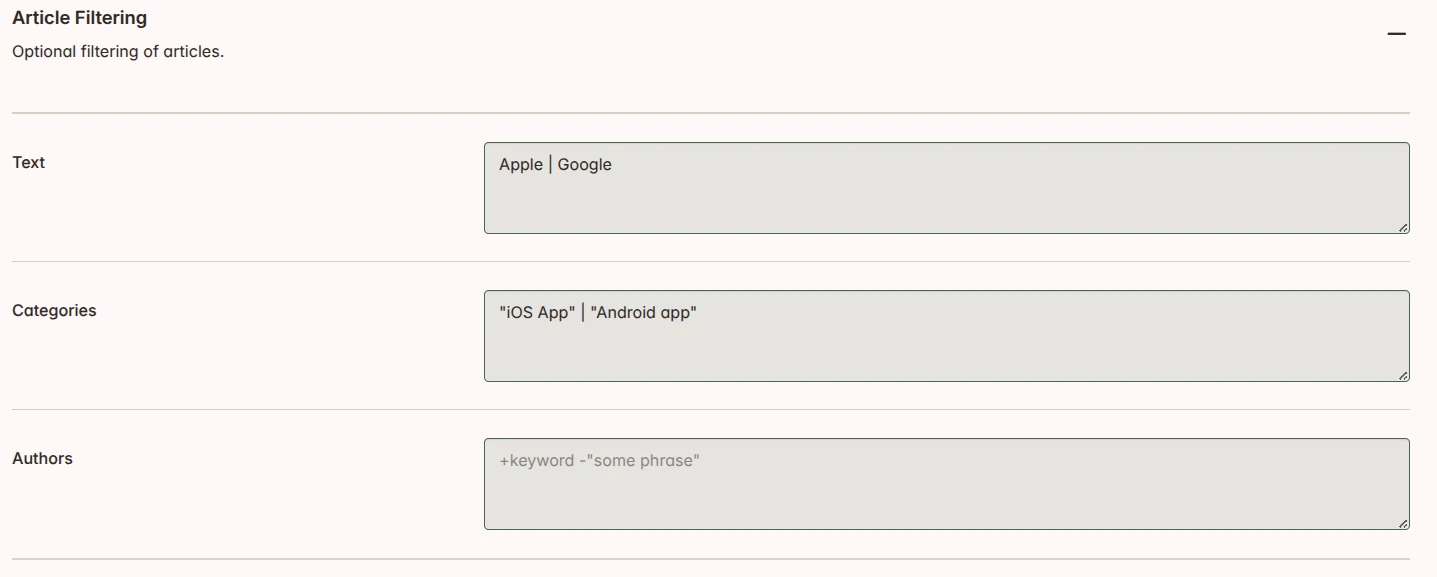
You can really go nuts if needed:
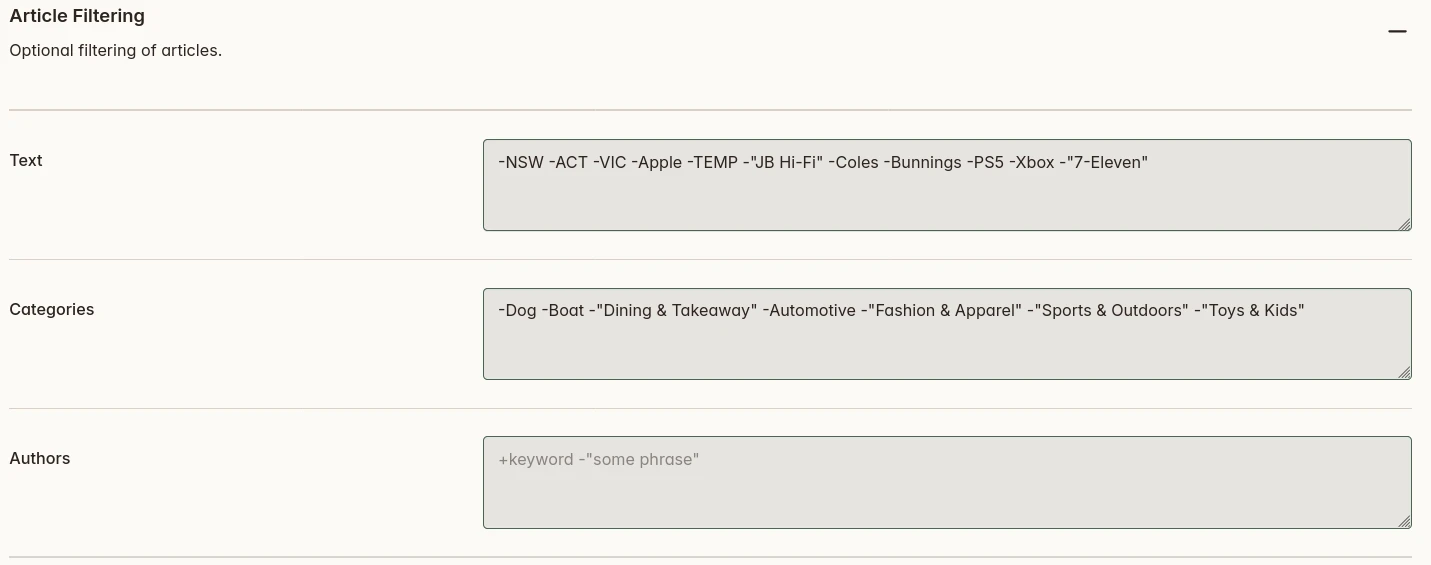
So that mumbo-jumbo: actually useful. But sometimes just a few keywords or phrases might be enough to get what you want. Remember, you need to dabble a bit with your filters to get the right signal to noise ratio.
Filter All the Things
Filtering in Foragd is an extremely powerful tool to tame noisy feeds. The best part, Foragd has no restrictions or limits on these filters, so you can use as many as you need across as many of your subscriptions as you want.
One other thing to note, your article filters are always applied to that subscription, no matter where it shows up. Whether on the homepage, when it is part of a group subscription, or it is used in a search subscription, the filters will be applied.
Want to control the noise easily? Foragd is free to try for 14 days — no commitment needed. Sign up.
License: CC BY-SA 4.0.
Updated
The web outside of social media is having a bit of a renaissance. As the major social media platforms continue to enshittify themselves further, reducing genuine human connections in favor of clicks and engagement metrics, people are looking for alternatives. What they are rediscovering is what has been called the “indie web”; individual user blogs and websites, crafted by humans, not necessarily designed for maximum engagement but instead written and published through passion and interest.

What Is the Indie Web?
The “indie web” is a collective term for the websites and blogs that exist outside of the big social media websites. Rather than being optimized for search engine ranking and user engagement, these are sites by individuals for publicizing their own expressions, opinions, and creativity. There are no standard formats and no common platforms, but they do tend to provide syndication through feeds and loose connection through open standards like webmentions and microformats.
Where Do You Find Indie Web Content?
The way the web is architected today makes it difficult to find this content. Search engines are continuing to move toward summarized content over direct links and AI services are likewise taking over the place of the search engines. So actually finding that cool author’s personal blog, then finding similar sites and authors is increasingly difficult.
Fortunately, there are some great sites out there that act as both a jumping point and directory into the indie web sphere. From the content published on these sites, its easier to find and discover other sites and begin your journey into the indie web. This post contains a list of a few of them in no particular order that you can peruse yourself. All the sites publish their own feeds, meaning you can also subscribe to them in Foragd to keep up to date as they publish new content.
Feedle World
Feedle is a search engine for blogs and feeds, so is a great place to find new blogs and sites to follow. They even have a cheeky feeling lucky random search, a tribute to the old function in the early days of Google Search.
Kagi Small Web
Kagi is an alternative traditional web search engine and a big supported of independent websites and the indie web. They have a Kagi Small Web blog aggregator that is an excellent jumping point off to various people’s blogs and sites.
kottke.org
kottke.org might just be one of the oldest blogs on the internet, having started in 1998. Jason Kottke, the author provides a curated selection of posts across a wide range of topics from art and science to tech and news on semi-regular basis. It’s a great site for random discovery and inspiration.
webcurios
Across the pond, Matt has been publishing webcurios since 2010 a long-form part link aggregator, part opinion piece, part news update on various topics. There is some magical and wonderful links in each post, along with (and often lately) hard-hitting and though provoking long-reads on recent world events and topics. You’ll need a good drink and plenty of time to digest it in full. Published roughly weekly.
waxy.org
Another site that has been around for like, the entire history of the web. Andy Baio publishes links to fun little browser games to interesting news and events from over the web.
Getting Started
If you’ve never used a feed reader before, the easiest way to begin is to pick one site from the list above, subscribe to its feed in Foragd, and let it sit for a week. You’ll quickly find yourself following threads to new authors, niche topics, and corners of the web you didn’t know existed. That’s the indie web working exactly as it should; discovery driven by genuine human curiosity and not an algorithm. The web has always been bigger and stranger and more interesting than any platform’s timeline. You just need a map.
Foragd is free to try for 14 days — no commitment needed. Sign up.
Using a different feed reader? Download an OPML file you can use to import all the feeds above here.
License: CC BY-SA 4.0.

Updated

In an era of algorithmic feeds and social media noise, RSS readers offer something increasingly rare: complete control over your content consumption. But choosing between a feed reader can be challenging. The following comparison will hopefully make that easier.
The Contenders
Feedly: The Polished Powerhouse
Feedly has been the de facto RSS reader since Google Reader shut down in 2013. With millions of users worldwide, it’s known for its clean, modern interface and AI-powered features. Feedly positions itself as more than just an RSS reader—it’s a content intelligence platform with specialized offerings for threat intelligence and market research teams.
Inoreader: The Power User’s Choice
Inoreader appeals to those who want granular control over their feeds. Based in Bulgaria and EU-compliant, it’s particularly popular among privacy-conscious users and those who need advanced automation. With a generous free tier and robust filtering capabilities, Inoreader has earned its reputation as the RSS reader for serious news consumers.
Foragd: The Practical Alternative
Foragd is a new generation feed reader. It eschews the common inbox design, focusing a more e-book reader approach to navigating your subscriptions. Unread counts are hidden by default as well. This results in a straight-forward interface that puts the content first and with powerful searching and simple filtering, allows you to focus more on the discovery and less on the management of your subscriptions.
About the Comparison
Most of these services offer a number of different subscription tiers. In this comparison, we will focus on the base paid tier of each service.
Feature Comparison at a Glance
| Feature | Foragd | Feedly | Inoreader |
|---|---|---|---|
| Pricing and Plans | |||
| Price (USD) | $4.92/mo billed annually or $7.00/mo billed monthly | $6.99/mo billed annually | $7.50/mo billed annually or $9.99/mo billed monthly |
| Trial period? | 14 free trial. | None. | 15 days |
| Inclusions and Limits | |||
| Subscription limit | 3000 | 1000 | 2500 |
| Email newsletter subscriptions | 50 | No. | 20 |
| Core Features | |||
| Full-text search | Yes. | Yes. | Yes. |
| Article filtering | Unlimited per subscription filters. | N/A | Up to 30 filters across all subscriptions |
| Organization | Groups and categories. | Limited. | Folders and tags. |
| Topic monitoring | Saved search subscriptions (up to subscription limit). | No | Up to 30 topic monitors. |
| Fetch remote content | Yes. | No. | Yes. |
| Android/iOS Apps | N/A (web based and works anywhere). | Yes. | Yes. |
| Other Factors | |||
| Open source | Yes | No | No |
Feedly and Inoreader both have features around update frequency boosting, which supposedly provides updates from sources faster. But really, you are bound by how regularly the source is updated; if it only updates every hour, a boost will not do anything. Foragd fetches content on the interval the source specifies, or hourly by default.
Migration Between Services
Switching between services is straightforward. All support OPML export and import, which means you can transfer your entire feed list in minutes:
- Export your feeds as an OPML file from your current reader
- Import the OPML file into your new reader
- Your feeds, folders, and organization structure transfer automatically
Note: Saved articles, read/unread status, and tags typically don’t transfer between services.
The Verdict
No matter which of these you choose, you’ll no doubt have a pleasant experience.
Feedly has moved its focus away from consumer usage into a few niche areas: cybersecurity and market research. If you work or are interested in these areas, then it is a great fit. As a general feed reader for blogs and other content, you probably won’t get good value for money out of it.
Inoreader has a lot of features, and it definitely will appeal to power users with the rules, automation, customization, and other features at your disposal. But, many advanced features, like content filters or topic monitors have limits on usage. While powerful, advanced rules and filtering can be overly complex if most of the time you just need to filter on a given word or phrase.
Foragd offers generous inclusions and cuts below both Feedly and Inoreader for pricing. And most features found in the former services have complementary and more intuitive functionality in Foragd. For example, Foragd makes it extremely easy to filter by keyword or phrase on a per-subscription basis, giving you more control over what is shown. If you find yourself wanting simplicity without sacrificing power, Foragd is worth a look.
In an age of algorithmic feeds designed to maximize engagement rather than inform, all these readers share something in common and increasingly valuable: tools that put you back in control of your content consumption.
Curious? Foragd is free to try for 14 days — no commitment needed. Sign up.
License: CC BY-SA 4.0.

Updated

Feed Discovery Was Designed for Machines, Not Humans 🙁
Partly, this is due to the way the RSS specification suggests advertising feeds through an autodiscovery mechanism (see here for the technical details). This process is less for humans and more for automation, like your browser, or your feed reader. That was a novel and useful approach back when browsers had integrated feed readers and RSS/Atom were more popular. Nowadays, it makes these formats harder to find and discover.
The good news however is that there are lots of other ways to find good feed sources. A few techniques are listed in this article.
Technique 1: Use Your Feed Reader
Modern feed readers, like Foragd, will auto-detect the feed given a website URL. They utilize the autodiscovery process, along with other sleuthing techniques to find feeds for your favorite sites. So in a lot of cases, it may be as simple as just providing the URL of the site to the feed reader and let it do its magic. No need to parse the site’s HTML or scan the content or find a site directory; just enter the URL, and in most cases, 💥 you have your favorite site’s content streaming to your feed reader.
ℹ️ You can use Foragd’s Feed Viewer to find and parse the feed content of any website.
Technique 2: Where’s Waldo
Many websites display their RSS feed link in the footer as text or an RSS icon — look for the words ‘Feed’, ‘RSS’, or ‘Atom’, or the orange RSS icon. For example, one of the following:
Such links usually return the raw feed content, so they can be copied and pasted into your feed reader to add them.
Technique 3: The Old Appender
Despite the web being wonderfully diverse, the majority of websites use a handful of frameworks behind the scenes, and these have predictable URLs where their feeds are located. What does this mean? It means most websites have an RSS feed at a canonical URL or address. You can then utilize this to find the feed for any site. In most cases add one of the following onto the end of the site URL:
/rss/feed/feeds/posts/default
Note that Foragd uses a bunch of techniques when it can’t find a feed natively, so that you don’t need to use trial-and-error to find the feed URL yourself!
A Few Well-Known URLs for Specific Sites
For any subreddit, just append .rss on the end of the URL. For example:
https://reddit.com/r/rss/.rss.
Tumblr
A Tumblr blog usually has an RSS feed at /rss on the end of the URL.
Substack
Similar to Tumblr, Substack blogs usually have a feed at /feed.
Medium
Medium helpfully documents how to generate URLs to get feeds for authors, publications, and even topics.
Technique 4: Feed Search Engines/Lists
There are a few dedicated search engines for feeds and sites with quality feed links out there you can peruse:
- feedle.world: A feed search engine and discovery site. Contains a lot of independent bloggers and sources. Try the random search feature 🎲.
- feedsearch.dev: While targeted for API usage (i.e., built into another app), the site itself will return a human-readable list of feeds for a given site.
- Feedspot: A large database of RSS feeds. The categories are a bit dubious and in my opinion SEO-clickbaity but its possible to find some useful feed links among the lists.
- RSSHub: Is both a search engine and tool you can self-host to provide feed links for sites, including generating feed links for sites that don’t publish their own. There are public instances you use to browse all available feed links for different sites. Quality can be hit-and-miss, so YMMV.
- Kagi Small Web: is an old-school web ring of independent sites. You can search or navigate by site and topics to find independent blogs and sources.
A little bit of search-fu might work if all else fails. In your favorite search engine, try a search like
site:my-favorite.site file:rss. If you are lucky, the results may include the RSS link for the site.
Conclusion
To find RSS and Atom feeds for any website, try these approaches in order: paste the site URL directly into your feed
reader and let it auto-discover the feed; look for RSS or feed links in the site’s footer; try appending /feed,
/rss, or /feeds/posts/default to the site URL; or use a dedicated feed search engine like
feedle.world, feedsearch.dev, or RSSHub. In
most cases, a good feed reader like Foragd will handle discovery automatically.
If you want to try out using RSS and Atom feeds, you can start a free trial of Foragd and start gathering your own collection of topics, news, and opinions!
License: CC BY-SA 4.0.

Updated
Feed overload is one of the commonest reasons people abandon RSS readers. Use your feed reader’s tools to take back control and beat the overload. The six strategies below will help you go from a chaotic flood of articles to a calm, manageable reading list.

Drowning in Content
In any modern social media or feed viewer service, your feed is a central stream of information. However, the sheer volume of content and rate of updates can be overwhelming, to downright crippling.
In this article, we go through some strategies on how to manage this overload, and talk about how Foragd can help.
6 Strategies for Managing RSS Feed Overload
Stop Caring About Unread Counts
Remember “Inbox Zero”? Where you tried to keep your email inbox empty? Hands up if you actually achieved, let alone maintained it? If you didn’t raise your hand, don’t worry, you are in the majority. While a noble concept, this was practically impossible. Similarly, why do feed readers insist on showing you an unread count? It is a phantom obligation; you didn’t ask for the cognitive pressure from it, yet these services demand you make the number go down.
Foragd does not display unread counts by default. You can turn them on if you want them, but hiding them by default is a deliberate design decision to create space for discovery and novel navigation, not frantic “number must go down” skimming.
As a further control, Foragd has an option to allow you to hide all unread articles older than a given period, like the last week. So even with unread counts off, your articles never pile up.
Look for a feed reader where you can turn off unread counts. Foragd can, but many of the popular readers unfortunately don’t.
Filter by Keywords/Phrase to Remove Noise
Often different subscription sources will contain some posts that you don’t want to see. Maybe it’s a topic or area you aren’t interested in, or, worse, promoted or sponsored content. In these cases, you need a way to filter posts. Ideally a good feed reader will offer this post filtering for you, and you should be able to filter by phrase, keyword, category, or, author.
This shouldn’t be an add-on, it is mandatory in the modern age of information overload. Secondly, it shouldn’t be difficult or complicated. Most of the time, you’ll probably just want to filter out posts with a particular keyword, phrase, or category. You shouldn’t need to learn programming constructs or use a complicated filter building interface just to say “don’t show me posts mentioning secret pizza parties”.
Foragd makes this very easy. For any subscription, you can filter with “this not that” logic:
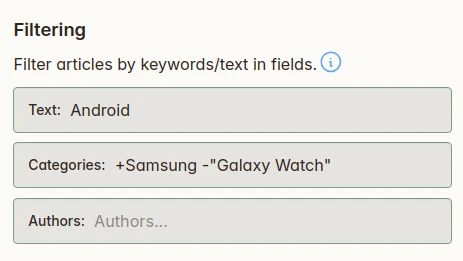
In this screenshot, we are using the simple but powerful filtering features in Foragd to:
- Match articles that contain the word
Android. - Include articles with the category
Samsung. - Exclude articles with the category
"Galaxy Watch"(phrase match)
With these simple +/- operators and some keywords/phrases, you can easily filter to the content you are interested in.
Look for a feed reader that allows filtering by default and doesn’t make it overly complicated.
Combine Sources with Group Subscriptions
Another useful trick for a feed reader is a way to aggregate or combine multiple subscription sources into a single view. That allows for less context switching and potentially deduplication. In Foragd, we call this a Group Subscription.
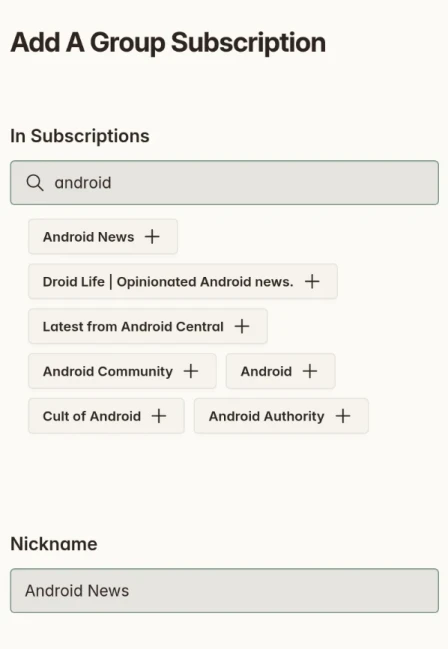
In Foragd, you can create a group subscription that combines many individual feeds into one stream of articles. You can then apply article filters, as shown above, to filter across all the grouped subscriptions. This makes it easy to apply a “divide and conquer” approach across similar topics or sources.
Use Search Subscriptions to Monitor Specific Topics
Search is an underrated but extremely powerful tool for managing content overload. With powerful search, it becomes easy to not only filter, but home in on content of interest.
Most feed readers provide some kind of search functionality. With Foragd, you can search within posts in addition for subscriptions, actions, and other features of the app. While the search bar offers a way to quickly find content by a keyword or phrase, there is also useful filters to further what will be searched.
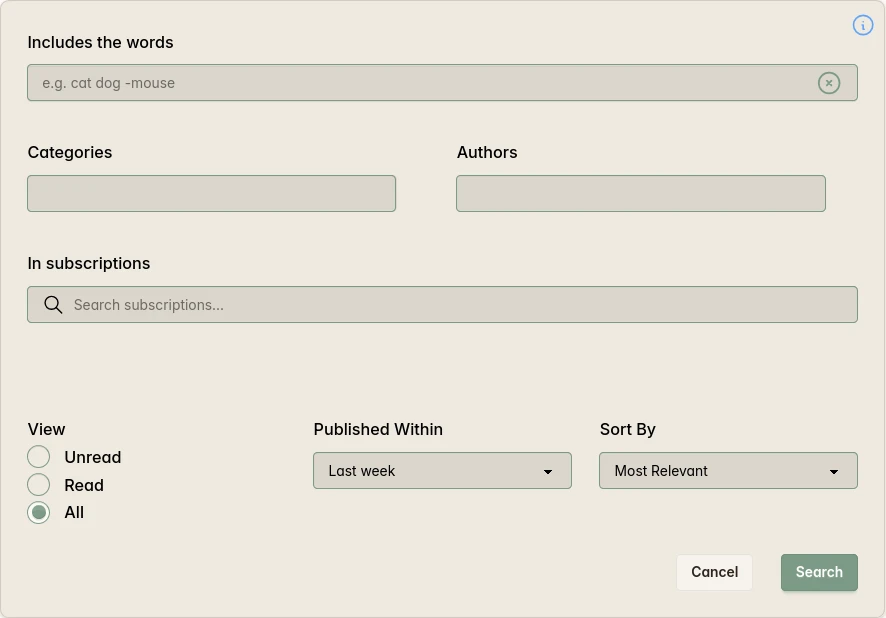
The advanced search dialog in Foragd provides plenty of control over your search, from matching specific authors and categories to filtering by when the articles were published or even their read state.
Additionally, in Foragd, any search can be turned into a Search Subscription. That means once you find the content you are interested in, you can save that search to surface new content that also matches it.
Use Categories to Organize Without Overwhelming Yourself
Finally, another way to manage content is to categorize it. With most feeds, the posts themselves contain categories assigned by the publisher. Foragd exposes these, and you can filter posts by these categories. Additionally, you can assign categories to subscriptions as well, allowing you another way to group and organize them.
A lot of feed readers use “folders” to organize your subscriptions. Often however, a subscription can only be in one folder, when in reality, subscriptions don’t necessarily neatly fall under one thing. Foragd does not have this limit you can apply as many categories as you need to each subscription.
On the other side of this, categories can easily become messy and stop serving a useful purpose. So it’s important, when categorizing, to consider having a limit on them. Something similar to the Johnny Decimal system is useful in this regard. Have just 10 broad, high-level categories you apply across your subscriptions. Within each of those, consider 10 more specific categories to narrow things down. As an example, you might have broad categories like Work and Personal with lots of subscriptions falling under these, and then more specific categories related to Personal like Finances, Health, Fitness, etc.
Review and Clean up Your Subscriptions Occasionally
One of the most powerful tools for managing the overload isn’t a tool feature; it’s just a little bit of discipline. Occasionally, take some time to review your subscriptions and decide which ones might be worth culling. For example, if you find you are constantly skipping over a subscription or have applied a significant number of article filters to it, maybe its time to unsubscribe.
Summary
There a few features in most feed readers that are useful for controlling the flood of content from feeds.
As an example In Foragd:
- Turn off unread counts: Foragd hides them by default to remove the pressure of keeping the number at zero.
- Apply post filters within each subscription to block keywords, phrases, categories, or authors you don’t want to see.
- Create Group Subscriptions to combine multiple related feeds into one view, then apply filters across all of them at once.
- Save searches as Search Subscriptions to automatically surface new content matching your interests across all your feeds.
- Use categories sparingly: the Johnny Decimal approach of 10 broad and 10 specific categories per subscription keeps organization useful rather than overwhelming.
- Take time to maintain your subscriptions: spend some time occasionally reviewing all your subscriptions and unsubscribing from any heavily filtered or constantly skipped subscriptions that indicate low value or noisy sources.
Sign up for Foragd to easily tame the stream of content.
License: CC BY-SA 4.0.

Updated
RSS and Atom feeds differ from social media in one fundamental way: you choose every source you see, and no algorithm, advertiser, or platform decides what appears in your feed. Social media centralizes content under corporate control, filtering, and promoting based on engagement and revenue. RSS and Atom are distributed, open standards; meaning any website can publish one, any feed reader can consume it, and the content arrives in the order it was published, unranked and unfiltered.

Are RSS and Atom Feeds Dead?
Most of us spend a lot of time on Social Media services like Facebook, X/Twitter, Reddit, and others. You might not spend much time looking at RSS and Atom feeds, even though they are very similar in a lot of ways. RSS and Atom predate most Social Media. But their usage and interest has declined over time as the web moved to be dominated by Social Media. Google Trends doesn’t lie:
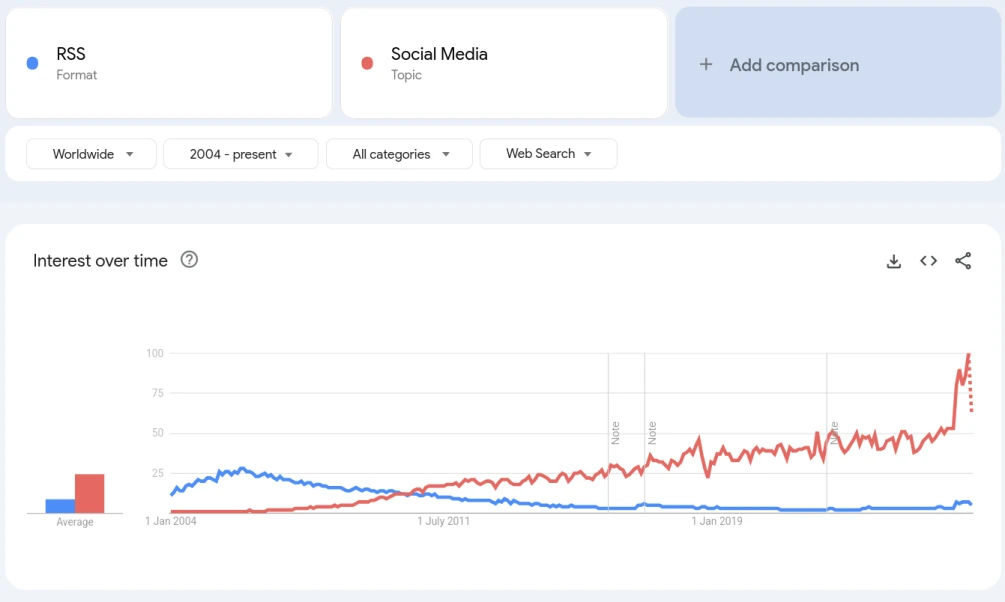
While interest in RSS and Atom has waned from the turn of the century, it still has immense (IMHO) value. Claims that these feeds are dead or dying are greatly exaggerated. What is likelier, is that the information we see is driven by market forces that favor Social Media platforms 1,2. Feeds are still out there, waiting to be found. In this post, we’ll take a look at what RSS and Atom can offer and compare that to Social Media.
What Is RSS and Atom?
There are a lot of similarities between RSS, Atom, and Social Media. Both are based on posts of content from different people. Those posts are usually some kind of list (the “feed”), with recent posts at the top. With extensions, RSS, and Atom can provide some similar features to Social Media, such as easy commenting and sharing.
RSS and Atom are essentially files that contain the list of articles/posts in a machine-readable format. You put the file up on your website, then special software reads the file and formats it into something a human can view. When a new article or post is created, you edit the file and upload it again. Here is an example. When you click on that, without a proper feed viewer, it’ll probably look pretty ugly. A feed viewer on the other hand, can turn all that code into a beautiful list of articles. In fact, you can take that file and choose from a number of different feed viewers depending on your taste.
Social Media is usually accessed through an app or website. There is no file so you are forced to access and view the content via the layout and design of the company behind the service. For some services, you do have a choice of different clients to access it, but that could change at any time.
Finding Content
The biggest difference comes from how the content is curated or found. With Social Media services, you are restricted to only following the people and topics within service, such as specific forum, topic, handle, or accounts. With RSS and Atom, there is no central control, its completely distributed; and you pick and decide the content to follow from all over the web. RSS and Atom have no central repository, they are sourced directly from the publisher or producer of the content. One disadvantage of this is it can be hard to find RSS/Atom feeds without a central search functionality as offered on most Social Media services. However, websites with feeds usually advertise their RSS/Atom feeds visibly and, most good feed viewers can find a feed for a website for you.
Additionally, RSS and Atom aren’t just for blog posts, witty observations or cat pictures. These formats are extendable and adaptable to any kind of content, generated by both a human or machine. There are RSS and Atom feeds for weather updates, software releases, and even emergency incidents, including precise geographical coordinates of where such events are happening.
ℹ️ See our post Finding Feeds for ways and places to find feeds.
Promoted Content and Recommendations
Further to this point, Social Media services may also promote content based on an algorithm that decides what stuff you might like to see. While this can be useful, it can be used for deceptive practices such as showing content designed to sell or promote products and services. RSS and Atom, being distributed, have no such algorithm. You only see what you hand-picked yourself. Rarely, the feeds themselves might contain promoted content. In any case, this won’t be targeted as these formats do not gather and store a profile of what you view.
Filters and Controls
Social Media services often have controls that may allow some degree of filtering of content. Usually however, this will only allow the user-generated content to be filtered, not the promoted content. Most good feed readers, like Foragd, provide controls that allow you to filter any content, promoted or otherwise.
Centralization
The most popular Social Media services are run by companies and companies don’t like working together. As such, Social Media is fractured, and you likely have multiple accounts across different services to track all the content you are interested in.
Feeds, while sourced from many places, can be collated into a single location, your feed reader. As such, it’s much easier to gather and group the content, and view it all in one place, without needing to switch apps or websites. You get a consistent and familiar interface for all content.
Portability
If you decide to switch or ditch a particular Social Media service, it can be nigh impossible to export your subscriptions and data and import it elsewhere. With RSS and Atom feeds, there is an open and portable file format called OPML that is used to export and import across different feed viewers. This makes it much easier to move between viewers as needs arise, without manual copying of data or potentially even losing access to certain sources.
Why Use RSS and Atom?
Probably the biggest argument for using RSS and Atom feeds is freedom:
- Freedom to choose sources you see: you subscribe only to what you want, with no suggested or promoted content from an algorithm.
- Freedom to filter which bits of the content you see and don’t see: most feed readers let you filter by keyword, category, or source, including any promoted content within feeds.
- Freedom to control how that content is displayed: behind the scenes, feeds are just text, meaning you can easily change how they are displayed.
- Freedom to manage your subscriptions wherever: using the OPML format; an open standard that all major feed readers support.
- Freedom to save and archive the content (within copyright and other laws): as you get the content directly through the feed, you can store that content easily. Of course this does not change any copyright or other legal protections on the content.
Conclusion
RSS and Atom have a lot of similar functionality to Social Media services, so have a lot to offer even today. Further, as we observe more control and tighter restrictions on the content available on most Social Media platforms, the freedom inherently provided with RSS and Atom is extremely compelling to ensure that diverse content can be heard.
For anyone who wants to read the web on their own terms — without ads, without algorithms, and without a corporation deciding what’s relevant — RSS and Atom remain the most powerful tools available.
If you want to try out using RSS and Atom feeds, you can start a free trial of Foragd and start gathering your own collection of topics, news, and opinions!
License: CC BY-SA 4.0.
You can directly search for feed content for any website from the browser bar by navigating to:
https://foragd.app/viewer/url/https://some.site
As an example, try this link:
https://foragd.app/viewer/url/https://foragd.appYou can also use this Bookmarklet (drag to your bookmarks then use on any site).
Frequently asked questions
A feed reader is an app that collects content from websites, blogs, and newsletters you choose and displays it in one place without algorithms deciding what you see or ads interrupting your reading.
Most websites publish their content as an RSS or Atom feed: a standardised file that lists their latest articles. A feed reader checks these files regularly and shows you new posts as they arrive, in chronological order, from only the sources you've subscribed to.
This is fundamentally different from social platforms like Facebook, X (Twitter), or LinkedIn, where a proprietary algorithm selects and ranks what you see based on engagement, advertising revenue, and platform goals and not your preferences. It's also different from news aggregators like Apple News or Google News, which curate content editorially and promote sponsored stories.
With a feed reader, you own your reading list. You can follow any website that publishes a feed, from major newspapers to small independent blogs and everything appears together, unfiltered and in the order it was published.
When you enter a URL, the feed viewer will fetch the source of the page.
If the source is one of the known feed formats like RSS or Atom, the viewer will format and return the posts contained in the feed.
If the source is normal webpage, the viewer will look at links in the page and try to find one that points to feed content, which it will then fetch, format and display.
Unfortunately, not all websites have RSS and Atom feeds. While the viewer tries its best to find feed content, and uses a few tricks for this, there are still websites that cannot be parsed.
Take a look at the blog post Finding Feeds, for tips about how to find feeds for sites.
No. Content is fetched and displayed dynamically, and is not stored once you navigate away from the page.
We do store common analytics services to track minimal, anonymous usage of the feed viewer. No personal information is collected or stored. The feed viewer does not require cookies.
More information can be found in our Privacy Policy.
The underlying library that does most of the heavy lifting, go-syndication is open-source!
The site itself is part of Foragd, a beautiful, web based, online feed reader, that uses the go-syndication library.