Foragd Help
- Foragd Help
- Where to Get Help
- Terminology
- Getting Started
- How to Search Articles & Subscriptions
- Managing Your Subscriptions
- Customizing the Subscription Display
- Filtering Articles Within a Subscription
- Filtering Articles Across All Subscriptions
- Global Verses Per-Subscription Filters, Which to Use?
- Group Subscriptions
- Search Subscriptions
- Email Newsletter Subscriptions
- Bulk Subscription Management
- Exporting Your Subscriptions
- Viewing Articles
- Saving and Viewing Your Favorite Subscriptions and Articles
- Accounts
- Feature Requests
- References
- Policies and Terms of Service
- Last Updated
Where to Get Help
- This document.
- Email us at support@immanent.tech.
- Use the contact form.
Reporting Issues and Bugs
Find a bug, issue, or something not quite working? You can report issues by selecting Report an Issue from the user settings menu at the top-right. Alternatively, you can go directly to the report an issue page. If you find an issue with a particular feed or item, you can select the Report an issue option in the item’s action menu.
Otherwise, just email us with details and we will look into it.
Terminology
- Subscription is a source of articles created by the user. The articles may come from different sources, such as a
single website, a group of other subscriptions or a configured search. These can also be referred to individually as:
- Feed Subscription: a subscription to a single website (i.e., an RSS/Atom feed for a particular website).
- Group Subscription: a subscription that aggregates the articles from other subscriptions.
- Search Subscription: a subscription created from a particular set of search terms.
- Article: is a single item from a subscription (i.e., an article, blog post, etc.).
Getting Started
Watch the quickstart video showing how to sign-up and add the curated feed sets to get started using Foragd:
Navigating Around the Interface
Use the sidebar (desktops, tablets) or bottom dock (mobile) to navigate between the Home, Subscriptions, Articles, or Favorites pages.
Adding Sources
Foragd supports adding subscriptions from a number of sources:
- A direct feed URL.
- Any website that publishes a supported feed.
- YouTube Channels.
- Google News searches.
To add a subscription:
- Click the Add a subscription button at the top of the subscriptions list page.
- Or on mobile, in the actions section of the Options popover on mobile)
- Click the Add a subscription button at the bottom of the latest subscriptions on the homepage.
- Type Add in the search bar and choose the Add a subscription option shown.
- Click/bookmark /subscriptions/add.
By default, you can enter any website or feed URL and Foragd will either find or parse and present potential subscriptions you can subscribe to. Alternatively, use the Source drop-down to add a YouTube channel or Google New search.
Watch the following video for a demonstration:
Discovering Feeds
If you don’t have a particular site in mind and would rather browse available feeds by keyword, topic, or category, you can go to /discover to search and browse for feeds.
Enter a search and/or filter by category and view a selection of available feeds that match. You can subscribe directly to any feed shown and see the latest articles from the feed.
Importing via OPML
If you have an OPML file from another feed application or service, you can import it by navigating to the Settings->Subscriptions tab and clicking import (or go directly to the import page).
Upload or drag and drop your OPML file and you’ll be redirected to a page showing the status of the import. The import is processed in the background and the status page will update with a summary of successful/failed feed imports as they are processed. You can leave the status page and start browsing your feed subscriptions as they appear, and come back to the status page to check its progress anytime.
How to Search Articles & Subscriptions
Use the global search in the header bar to search for anything. It will search across all Subscriptions and Articles,
offering both as suggestions. Additionally certain keywords will show action results (for example, searching add will
show actions for adding subscriptions). Choose a result to go directly to that article or subscription, an action to
perform that action, or hit enter/return to get a full set of results.
Use the advanced search (filter icon at the right of the search bar) to filter by subscription, category, author, date, and status. See also filtering for operators that can be used in the text fields.
About Search Results
- Search will preference articles from your favorite subscriptions.
- Search will preference articles that have been published/updated closer to today’s date.
Managing Your Subscriptions
Customizing the Subscription Display
You can customize any subscription, by changing its name or adding/removing categories. To customize a subscription, choose Edit Subscription from the context menu of the Subscription card:
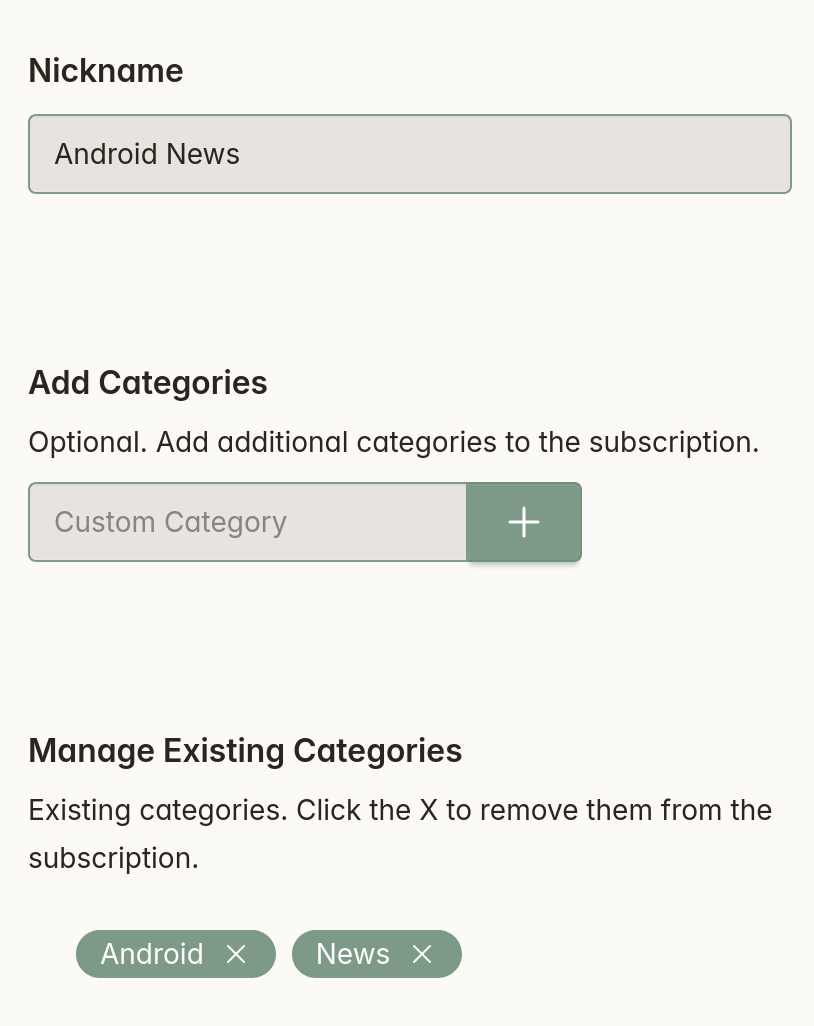
Categories allow you to easily group and filter your subscriptions. Where possible, some suggested categories will be presented as autocomplete options in the Add Categories input. These will be taken from the commonest categories on Articles within the feed.
Filtering Articles Within a Subscription
You can filter the articles in a subscription by text, authors, or categories. To adjust filters, edit the subscription and enter your filter terms in the appropriate inputs:
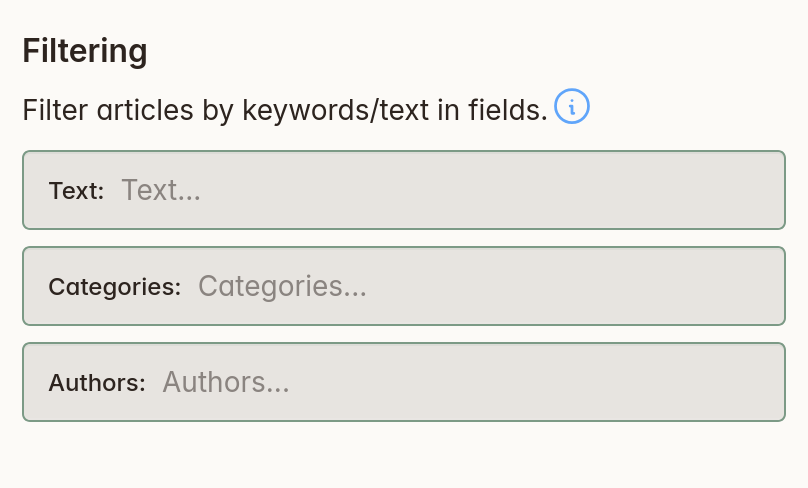
See filtering for details on filter operators and usage.
Note: article filters are applied globally, meaning all searches, views, and any group/search Subscriptions you create will have the subscription article filters applied.
Filtering Articles Across All Subscriptions
In addition to per-subscription article filters, you can apply global filters that work across all subscriptions. These are defined the same way as the per-subscription filters, across any text, categories, or authors you define.
Global Verses Per-Subscription Filters, Which to Use?
- Global filters are great when the same topics, categories, or authors come up across multiple subscriptions. This saves you repeating the filters per subscription.
- Per-subscription filters are great where you have a subscription on a specific topic or area and need precision filtering.
Be aware that global filters apply before per-subscription filters. When you filter out a keyword or phrase with a
global filter (i.e., -thing), you can’t then apply any per-subscription filters on articles that would match thing.
Those articles are filtered out already.
Group Subscriptions
You can add a Group Subscription which aggregates all the Articles from two or more Feed Subscriptions. This is useful where you subscribe to a number of feeds that have similar content, like Android news sites. When creating a Group Subscription, use the provided search input to filter your existing subscriptions for the ones you want to add:
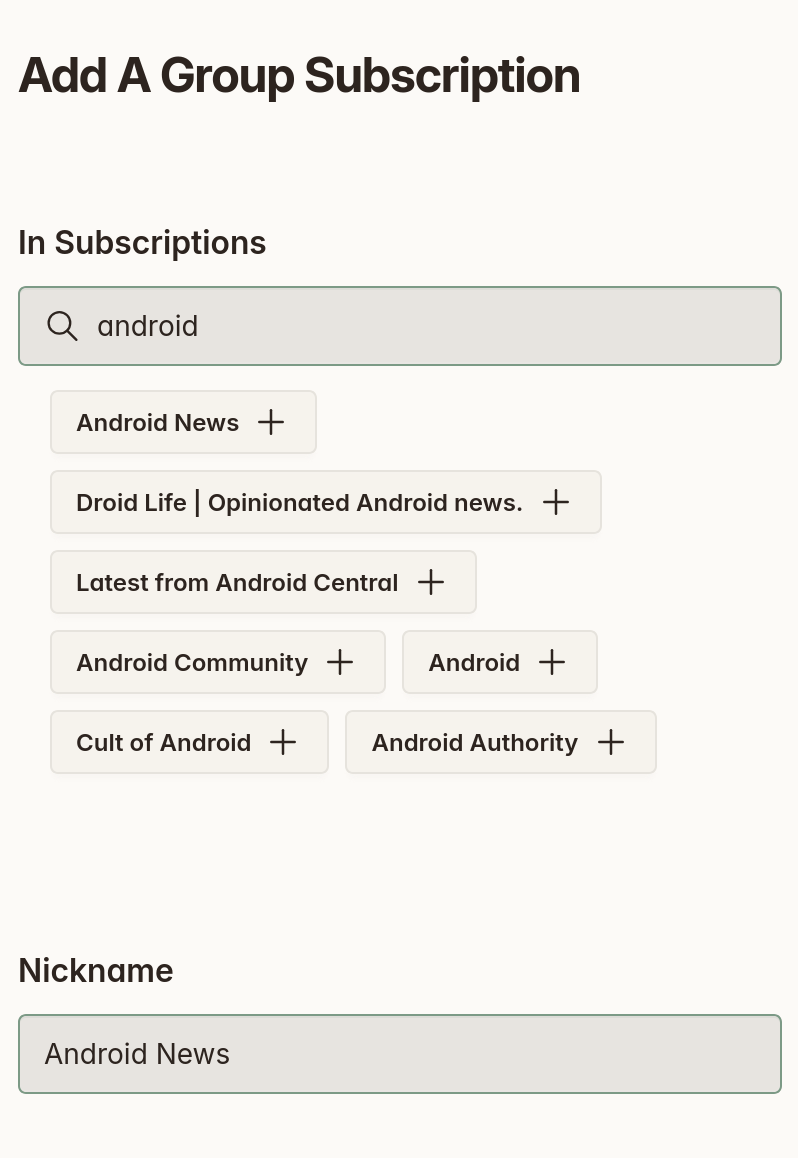
To add a Group Subscription:
- Search for Add in the global search and choose the Add A Group Subscription action.
- On the Subscriptions page, select Add A Group Subscription from the Actions menu.
Search Subscriptions
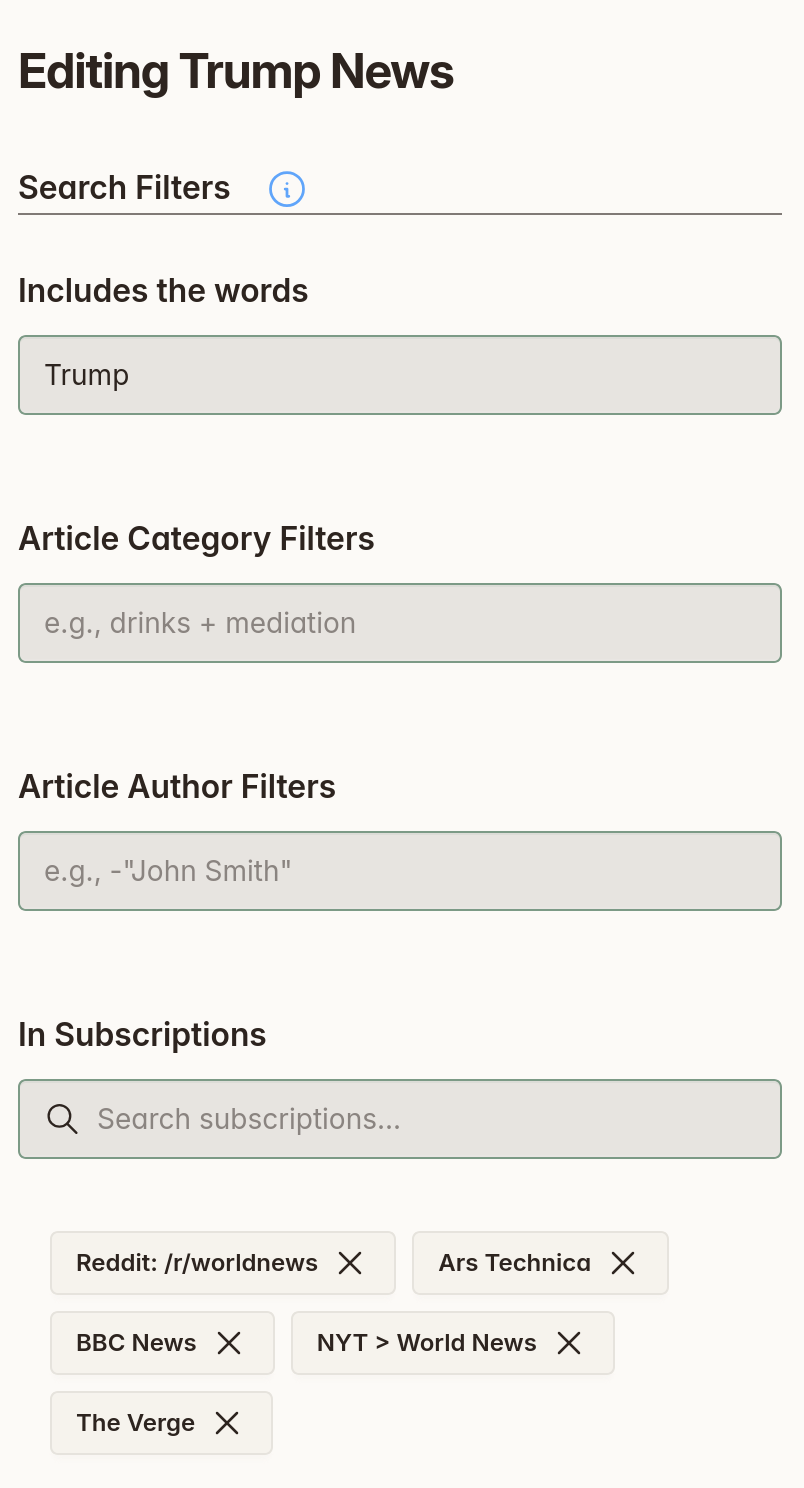
Any search can also be made into a Search Subscription. This is useful for keeping track of particular keywords or content across any number of your feed subscriptions.
To add a Group Subscription:
- Search for Add in the global search and select the Add A Search Subscription action.
- On the Subscriptions page, select Add A Search Subscription from the Actions menu.
Email Newsletter Subscriptions
You can subscribe to your favorite newsletters from within Foragd. This allows you to read newsletters alongside your RSS feeds without cluttering your inbox.
First, you will need to create your unique Foragd email address that you will use to subscribe to any newsletters.
- Navigate to Settings->Account and scroll down to Subscribe to Email Newsletters.
- Click on the Generate Email Address button to generate a unique email.
- The page will update with the new unique email.
Once you’ve generated your email address, use it when subscribing to email newsletters. The received emails will be automatically grouped under a new subscription from the sender email. You can then customize it further (add a picture, nickname, or even filter received emails) as with any other subscription.
Bulk Subscription Management
You can manage your subscriptions at Settings->Subscriptions. This page provides a way to edit, mark, and manage subscriptions both individually and in bulk. It also shows how many subscriptions you have in total (and what your account limits on subscriptions are).
Exporting Your Subscriptions
You can export your subscriptions by navigating to Settings->Subscriptions and
clicking the Export button (or go direct to the export page. Your subscriptions are exported as a
standard OPML file that all good feed readers support importing from.
Viewing Articles
Viewing Remote Article Content
With some subscriptions, you may only see a short snippet or preview when viewing the article content. Clicking the Get Remote Content button at the bottom of the page will tell Foragd to fetch the article from the source site and try to display the full content. If desired, you can switch back to the original feed content by clicking the Show Feed Content button.
Notes:
- Fetching the feed content can take up to 30 seconds, but is usually much shorter.
- While in most cases, Foragd will be able to retrieve the full article in this way, there is no guarantee it will succeed. The fetched content can sometimes be incorrect, incomplete, or be badly formatted.
Saving and Viewing Your Favorite Subscriptions and Articles
You can mark any subscription or article as a favorite. All favorites can be found on the favorites page. On the subscriptions list page, you can filter to show only favorites.
While Foragd does not retain all feed articles forever, marking an article as a favorite will ensure it is kept indefinitely. Foragd makes a copy of the article and stores it specially for you.
Accounts
- You can manage your account at Settings->Account.
- You can change your plan level or cancel anytime.
- Canceling a plan occurs at your next billing date. Until then, you can continue to use your plan. You can also reverse a cancellation during this period if you change your mind.
Note: Foragd uses Paddle as our payments processor for website users and Google Play Billing for Android app users. You will be taken to a hosted Paddle payment page, or your Play Billing Subscriptions, for managing your subscriptions and payments.
Feature Requests
Got a suggestion about the app, or a feature you’d love to see implemented? Email us with details; we’d love to know how to make the app more useful to you!
References
Search Operators & Filtering Guide
By default words are matched with OR (i.e., cats dogs will match cats OR dogs). The following operators can be used for more refined searches:
+signifies AND operation (i.e., food AND beverages).|signifies OR operation (i.e., food OR beverages).-negates the word (i.e., NOT samsung)""represents an exact phrase match (i.e.,"galaxy watch").\*at the end of a word indicates a prefix match (i.e.,bird\*will match bird, birding and birds).
Some real examples:
| Goal | Query |
|---|---|
| AI news, but not about ChatGPT | AI -chatgpt |
| Find articles about “machine learning” (phrase) | "machine learning" |
| Find articles that are only about python and that are also tutorials | +python +tutorial |
All operators can be combined, for e.g., +python +tutorial "machine learning" -chatgpt.
For more guidance and further examples, see the blog post Clearing the Noise: Article Filtering in Foragd.
Watch a video showing examples of article filtering:
Using Keyboard Shortcuts (on Desktops)
The following shortcut keys are available on desktop:
| Key Combo | Action |
|---|---|
Alt+k |
Activates the global search input |
Alt+h |
Navigates to Home |
Alt+s |
Navigates to Subscriptions |
Alt+a |
Navigates to Articles |
Alt+f |
Navigates to Favorites |
Policies and Terms of Service
Last Updated
Sept 12, 2026