Clearing the Noise: Article Filtering in Foragd
A deep dive into how to configure and use article filtering in Foragd.
As we’ve discussed before, it can be easy to get overwhelmed by the constant stream of articles, posts and other content coming through your feeds. It’s therefore critical that you are able to filter that stream to reduce the noise and surface the content you are actually interested in.
Foragd makes this easy with powerful but easy to use filtering across all your subscriptions. This post will walk you through the process of applying filters and show some practical examples.

The Source
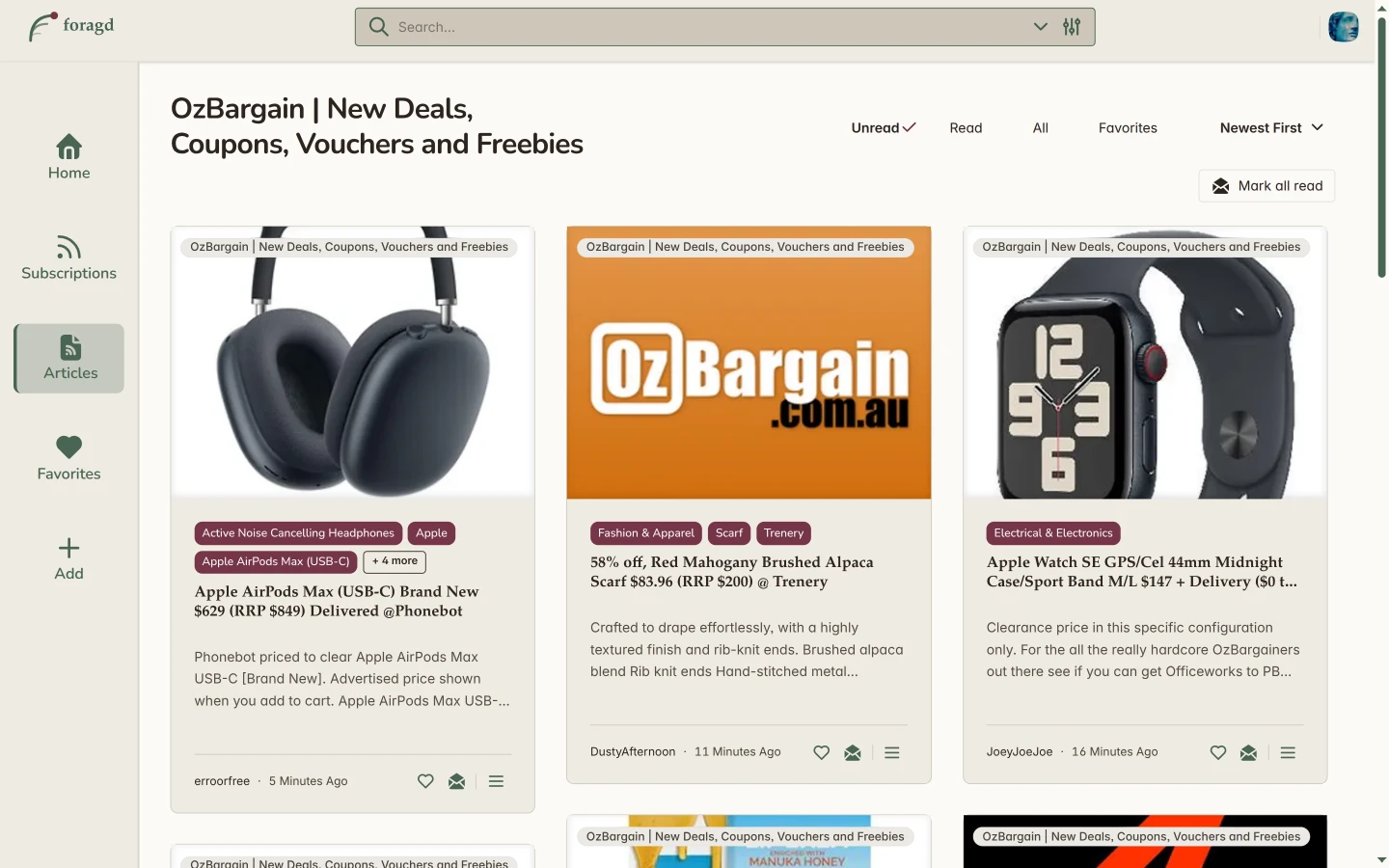
For this demonstration, I’m using the OzBargain feed. Ozbargain is a website where users post the deals from various shops/sellers they have found on the web. You can subscribe to it in Foragd, getting all deals as they come in:
If we turn on showing subscription stats in Foragd settings, and going back to our list of subscriptions, we can see that its feed is very noisy:
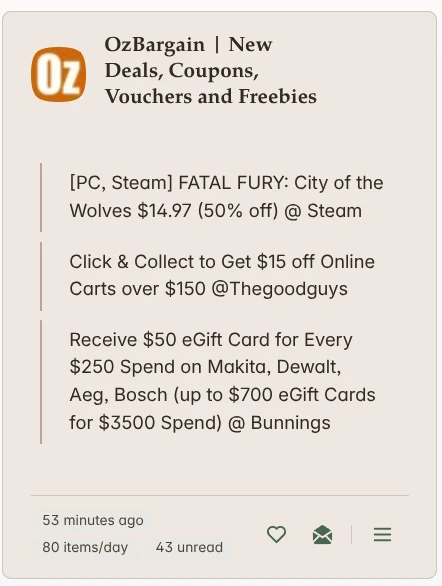
This is a busy feed! Ozbargainers (as they are known) are contributing on average, 80+ deals a day. That’s a lot of bargains! But not all those bargains are of interest to me, so its also a lot of noise.
One thing we can note, that will be useful as we build our filters, is that there is a lot of structure in these posts we can use to our advantage:
- All posts are categorized. We can define filters that apply directly to those categories.
- Post titles often have extra, unofficial tagging formats. See the
[PC, Steam]tagging on the game deal above, or how most posts mention which retailer or shop the deal applies to (i.e.,Amazon,Bunningsetc.).
Before We Start: A Segue on Filtering
In Foragd, every subscription can have its own set of article filters. You can filter on the article title, content, authors or categories, thus giving you a lot of power to drill-down to exactly what you are interested in:
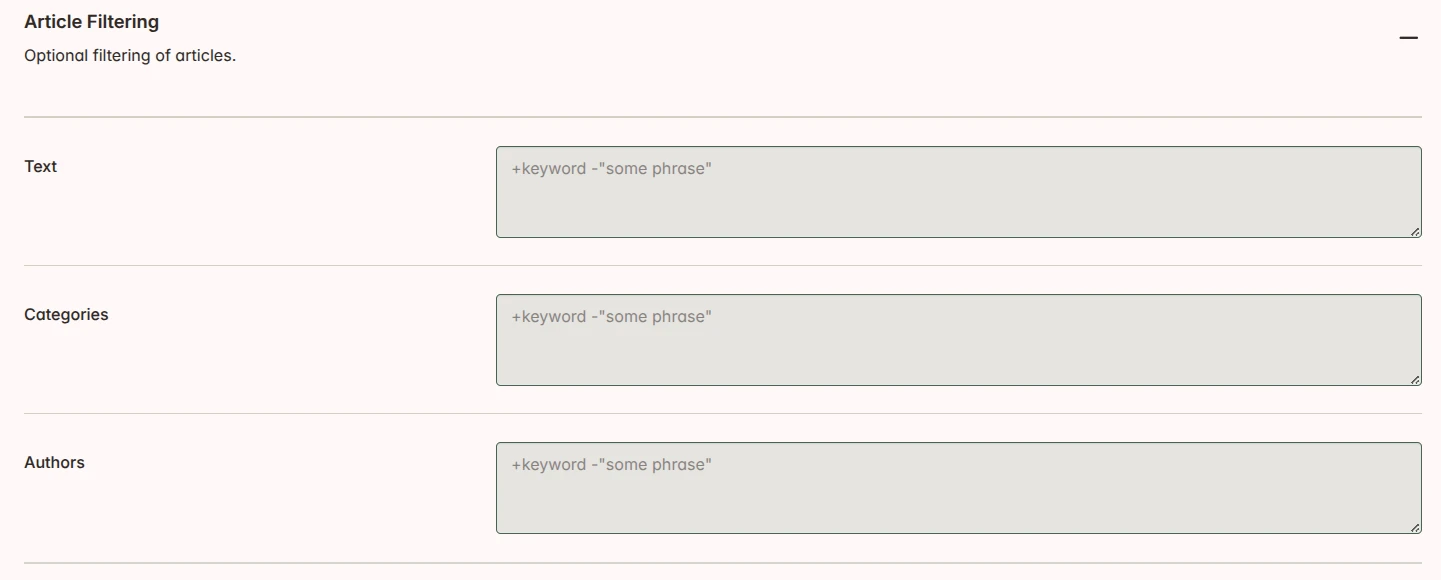
Filters are built from text. No need for complicated logic. Just a phrase like "search term" would filter
articles to those matching that phrase. You can use some operators for more extensive filtering:
+signifies AND operation (i.e., food AND beverages).|signifies OR operation (i.e., food OR beverages).-negates the word (i.e., NOT samsung)""represents an exact phrase match (i.e.,"galaxy watch").\*at the end of a word indicates a prefix match (i.e.,bird\*will match bird, birding and birds).
By default your filters are OR’ed together. So the filter cats dogs filters articles to those matching cats OR
dogs.
Some real examples. Let’s say you’ve got a feed on tech news and as of the published date of this post, tech is obsessed with AI. Here are some filters that could be used on that feed:
| Goal | Query |
|---|---|
| AI news, but not about ChatGPT | AI -chatgpt |
| Find articles about “machine learning” (phrase) | "machine learning" |
| Find articles that are only about python and that are also tutorials | +python +tutorial |
All operators can be combined, for e.g., +python +tutorial "machine learning" -chatgpt.
Filtering can be an inexact science. You may need a little bit of trial and error to get the filtering just right so that you eliminate nearly all noise, but aren’t accidentally filtering out articles you might be interested in.
Back to Building the Filters
Alright, so now we know how filtering works in Foragd, and we can see we have a lot of power to control our noisy Ozbargain feed!
Let’s say I’m interested in some new Apple gear. Ignoring all the mumbo-jumbo above and just filtering on Apple works:
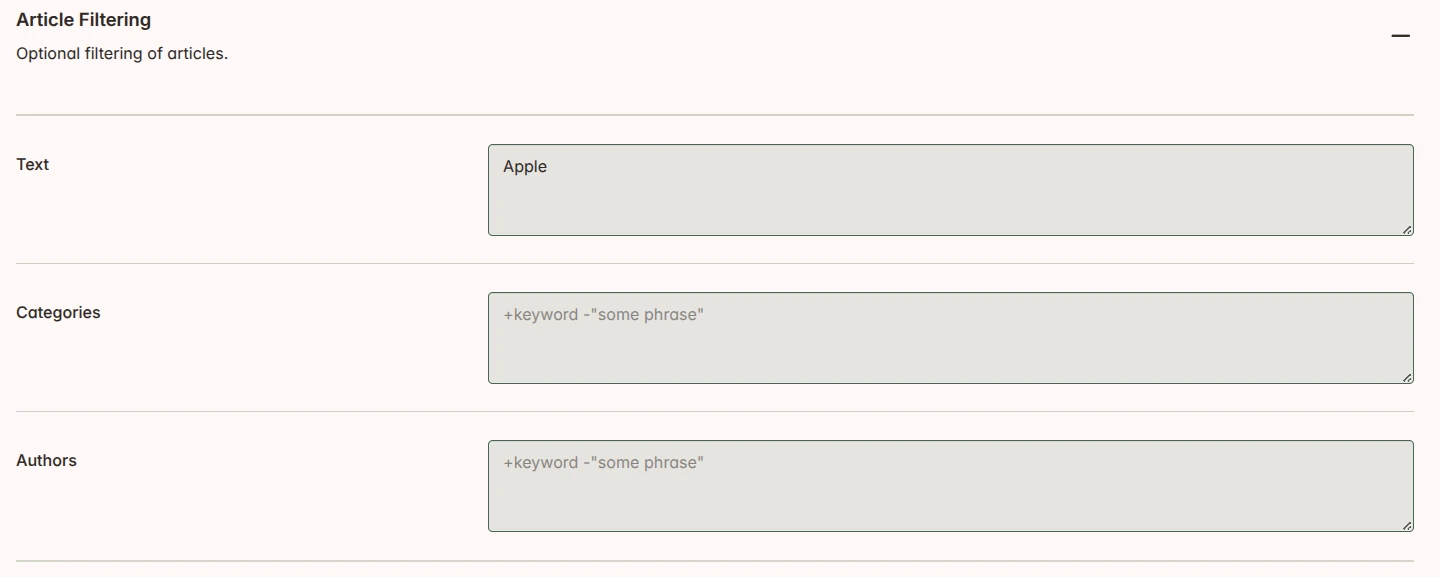
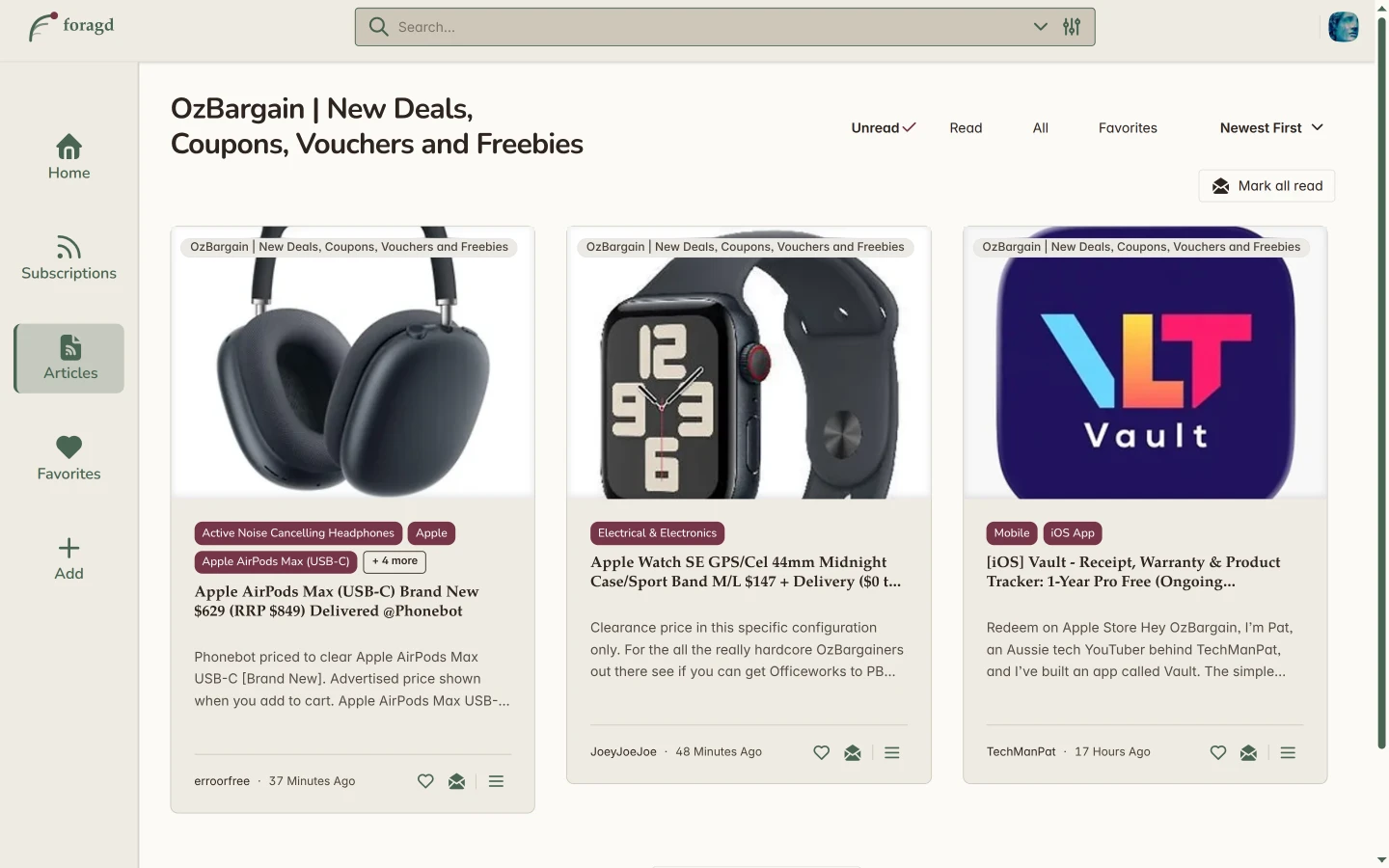
Boom! We are only seeing results for Apple products. Looking at the results, we could narrow the results down further.
If we were only interested in iOS apps or deals, we could add a Category filter: "iOS App", making use of that
category in the results shown. Alternatively, we could have changed the Text filter to Apple + [iOS]. Same results
in this case. But keep in mind that the titles are likelier to vary than categories (people might use all kinds of
variations in the title, or none at all!), so using categories would be a safer bet.
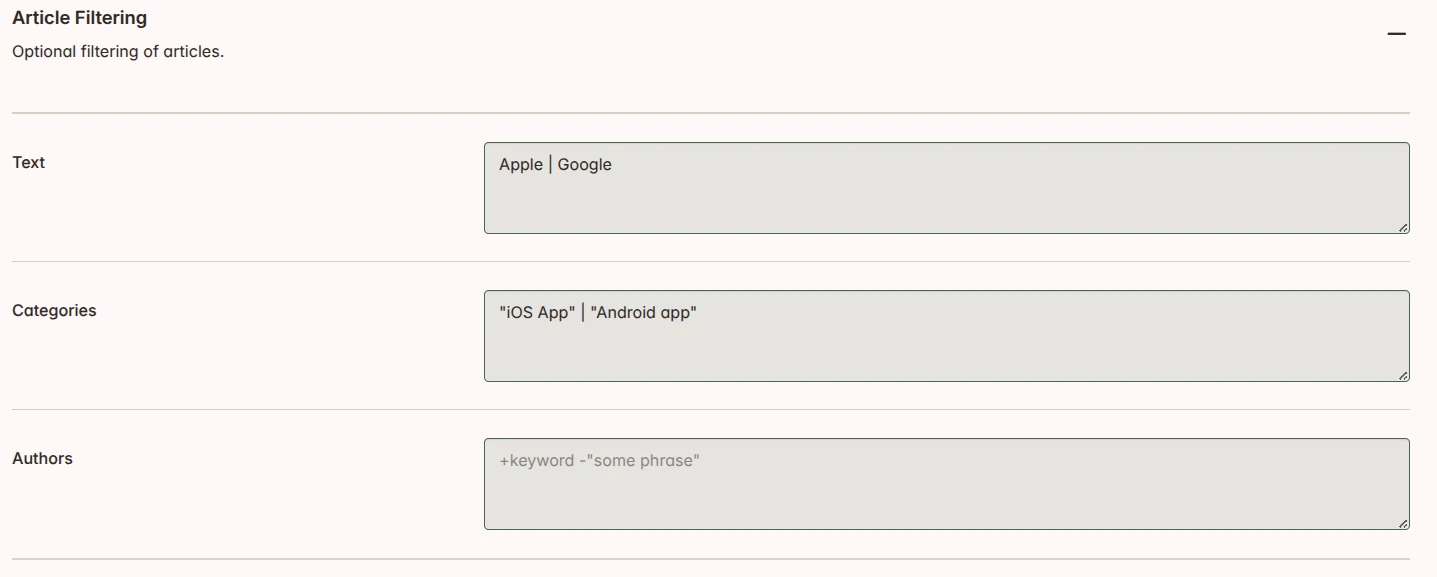
What if we wanted to broaden our results and compare the market a bit? We could change our Text filter to Apple | Google to filter to articles that match any of the top mobile manufacturers, then we could drill down with
some Category or additional text filters as needed. For example:
You can really go nuts if needed:
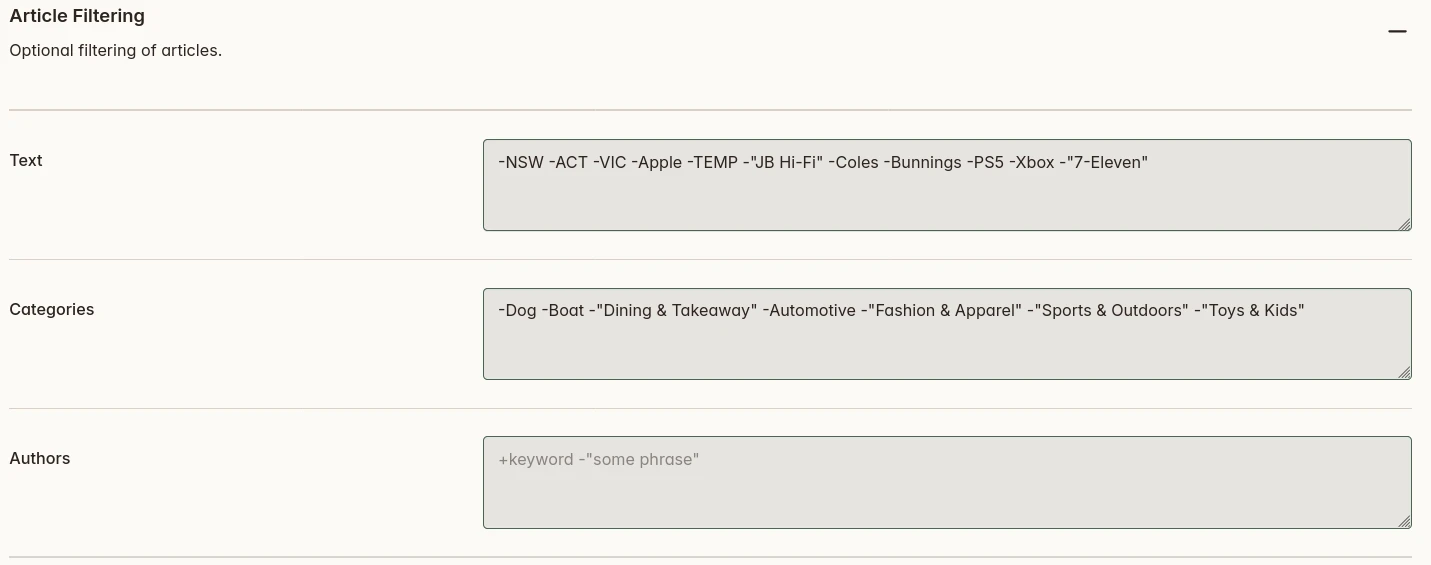
So that mumbo-jumbo: actually useful. But sometimes just a few keywords or phrases might be enough to get what you want. Remember, you need to dabble a bit with your filters to get the right signal to noise ratio.
Filter All the Things
Filtering in Foragd is an extremely powerful tool to tame noisy feeds. The best part, Foragd has no restrictions or limits on these filters, so you can use as many as you need across as many of your subscriptions as you want.
One other thing to note, your article filters are always applied to that subscription, no matter where it shows up. Whether on the homepage, when it is part of a group subscription, or it is used in a search subscription, the filters will be applied.
Want to control the noise easily? Foragd is free to try for 30 days — no commitment needed. Sign up.
License: CC BY-SA 4.0.